


 Track
Track
 Login
Login

Frequently Asked Questions
Introducing Astro GO Guest Mode, granting all users access to our app without requiring registration, offering a sneak preview of Astro GO’s content and interface. For users who would like to explore and watch the content available on Astro GO, they may then subscribe to Astro.
Don’t have an Astro account? Fret not, you may still preview and browse content available on Astro GO via Web, Mobile Phone or your tablet using Astro GO Guest Mode.
Astro is continuously improving our user interface and introducing new features to our platforms to ensure that your Astro experience is more seamless, efficient and user-friendly.
If you are not an Astro customer, Astro GO now allows you to preview what’s available in the app via Desktop, Mobile and Tablet. Download Astro GO now for a sneak preview of what the app has to offer !
Astro GO is free for all Astro customers to enjoy their favourite shows and channels on their smartphones, tablets, and computers – anytime, anywhere in Malaysia. Astro customers with an active Pay-TV subscription can link their accounts to watch corresponding On Demand and TV channels available on Astro GO as part of their subscription.
Don't have an Astro account? Fret not, you may still preview and browse content available on Astro GO via Web, Mobile Phone or your tablet using Astro GO Guest Mode.
You may explore and browse our content in Astro GO at no cost. However, if you would like to level up your entertainment experience and watch content on Astro GO, you may subscribe to Astro via www.astro.com.my or call us at 03 7491 9888. Alternatively, please Whatsapp Astro at 03 9543 3838 and type “Hi” for further assistance.
Your access to Astro GO will depend on the subscription pack that you are subscribed to.
Not all shows/channels will be available on Astro GO as this depends on contractual rights with specific guidelines on the entitlement of these shows/channels and what you have as a part of your subscription.
Please be assured that Astro is continuously working hard to make more content available on Astro GO.
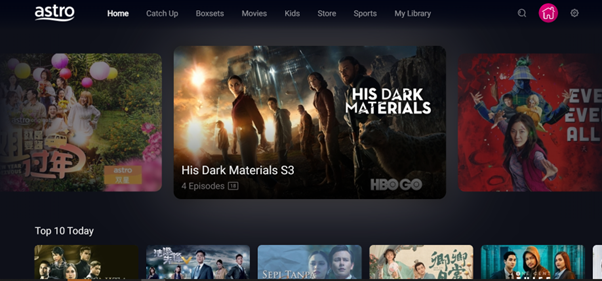
Home: Check out all the recommended content or watch your subscribed TV channels via the Channel Guide at the bottom of your home screen.
TV Shows: Watch all your favorite TV Shows from your device anytime anywhere without ever missing an episode!
Movies: Watch recent and popular movies on your devices! You can access a large catalogue of On Demand movies, according to your subscription.
Kids: Catch all the cartoons, animations and a variety of shows for kids of all ages.
Sports: Watch the biggest sporting shows LIVE on your mobile device, anytime anywhere.
Store: Other than your subscribed packages, you can also purchase and watch your favourite Pay-Per-View movies and other Astro exclusive content (not available on iOS devices).
Astro GO app:
a) Head over to Apple App Store (iOS) or Google Play Store (Android), and download the Astro GO app onto your devices. Please ensure that you have the latest updated version to enjoy new features.
b) For Huawei devices, head over to App Gallery to download the Astro GO app. Currently the supported devices and operating systems are as below:
Device Support | Huawei P40 |
Platform requirement | EMUI 10.1 & above |
Web browsers:
a) Astro GO is also available for streaming directly from your computer or laptop at astrogo.astro.com.my
Astro Customers:
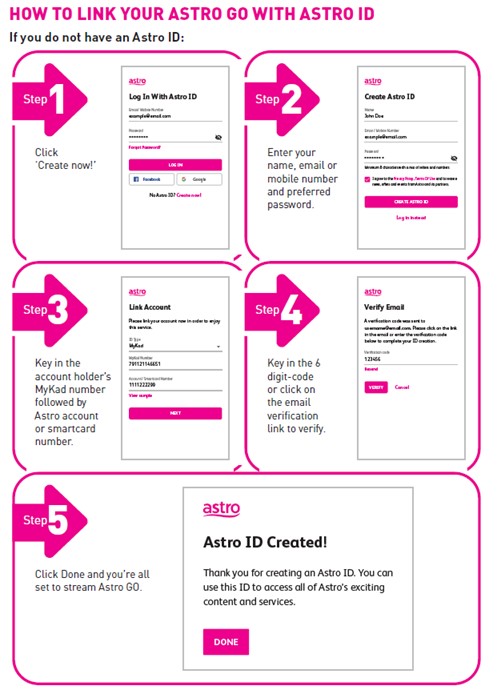
To enjoy shows on Astro GO you will need to login with your Astro ID. You may create an Astro ID via either one of the 2 methods below:
- Head over to astrogo.com.my and sign up using your existing active Astro account
- Download the Astro GO app onto your mobile device. After launching the app, click “create now” at the bottom section.
Additionally, you may also access Astro GO on your device via a QR code on Channel 200 from your Astro Box.
Non-Astro customers (No login is required, browsing/preview only):
Astro GO
- Download the Astro GO app on your device via Apple Store/Google Store
- For Huawei devices, head over to App Gallery to download the Astro GO app. Currently the supported devices and operating systems are as below: Device Support : Huawei P40Platform requirement : EMUI 10.1 & above
Astro GO on web browser
- Astro GO is also available via your computer or laptop at astrogo.astro.com.my
Turn on your Astro Box*, go to Channel 200, scroll down to the Astro GO tab and scan your unique QR code**.
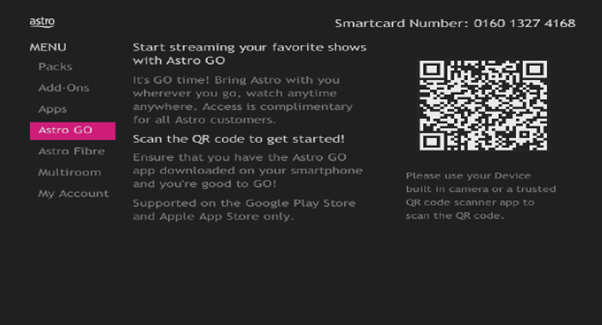
*Channel 200 is only available for non-Plug & Play Astro Boxes.
** We encourage use of your Device’s built-in camera to scan the QR code where available. If using a QR code scanner app, use only from a trusted 3rd party provider. You are solely responsible for use of any code scanner on a Device and Astro shall not be liable to you for any reason whatsoever for any kind of loss or damage that you may suffer.
The QR code is a new feature in the Astro GO tab on CH200 that simplifies the sign-up and login experience to Astro GO. You will need a smartphone/tablet with a general QR code scanner to scan the QR code.
Click here for additional information on this feature.
Currently Astro GO is only available in Malaysia. You will not be able to access it if you are overseas.
Please make sure that:
- You are logging in with the correct Astro ID and password. If you can’t remember your password, please proceed to use the “forget password” function. For more information, please refer to Account Management section of the FAQ.
- You have an Astro ID that is linked to an Astro account. (note: NJOI – linked users will not be able to log into Astro GO)
- Your Astro account is active and not under suspension.
Please make sure that:
- You are inserting the correct account holder’s information while linking, ie: I/C number, passport number, Astro account number or Smart card number.
- You are linking to an Astro account (NJOI customers will not be able to log into Astro GO).
- Your Astro account is not currently linked to any other Astro ID. If your Astro account is currently linked to another Astro ID, you will see a red notice.
Please check your internet speed and connection status via an internet connection test (https://www.speedtest.net/). If your internet is working fine and the issue persists, please try uninstalling and reinstalling the app on your device.
If you believe someone is using your Astro ID without your permission, you should first change your password by logging into www.astro.com.my. Please refer to the above Question on how to change your password.
After you have changed your password, you should remove unauthorised registered devices on the Astro GO app or website (https://astrogo.astro.com.my).
Astro ID is your own sign-in credential for Astro’s digital services, such as Astro GO, My Astro and more.
Every Astro account comes with a primary Astro ID. You can only have one primary Astro ID and this should ideally be the billpayer and account holder as he or she will be allowed to access billing details and make subscription changes.
After registration, a notification e-mail will be delivered to the primary account holder.
Two-Factor authentication (2FA) is an additional layer of information that is required to ensure that your Astro ID is secured and can only be accessed by the account holder.
To secure your account, you will be asked to enter additional information (account number or smart card number) to complete the process. You will only need to do this once.
To unlink and link to a different Astro ID, please contact our customer service at 03 - 9543 3838.
You should only log in to Astro GO on your personal devices. To identify which device belongs to you, access Astro GO on that device, go to Settings > Registered Devices. Repeat the steps on each of your personal devices to determine which device is registered.
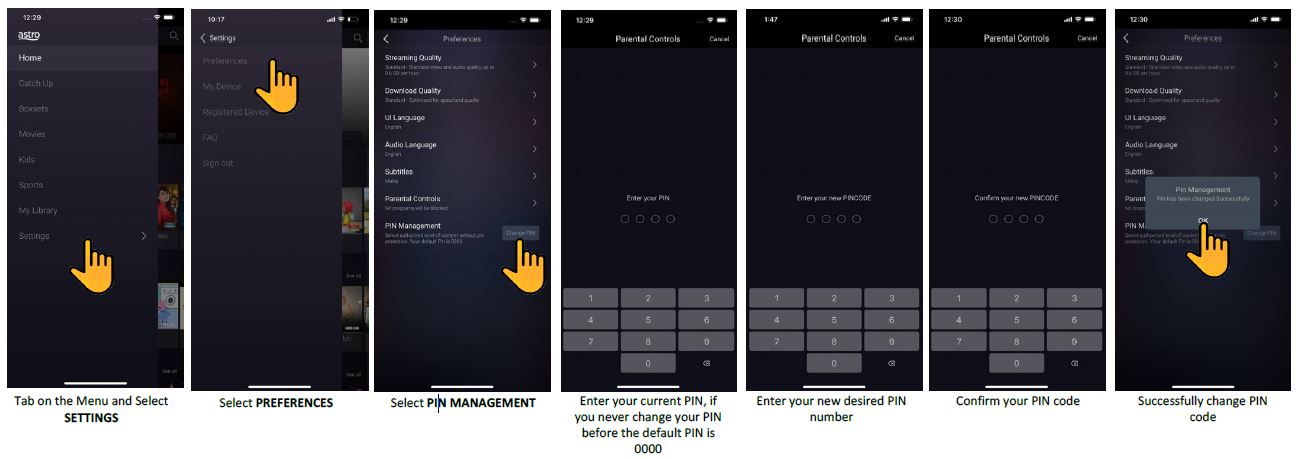
The default PIN is 0000. You may change your PIN to a secure one by doing this at Settings, under your Preferences, select PIN Management, enter your old PIN or default PIN and proceed to create a new PIN.
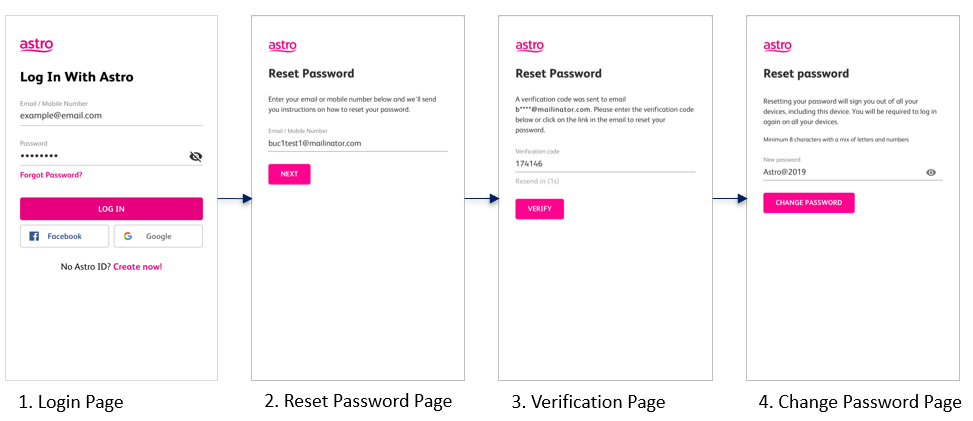
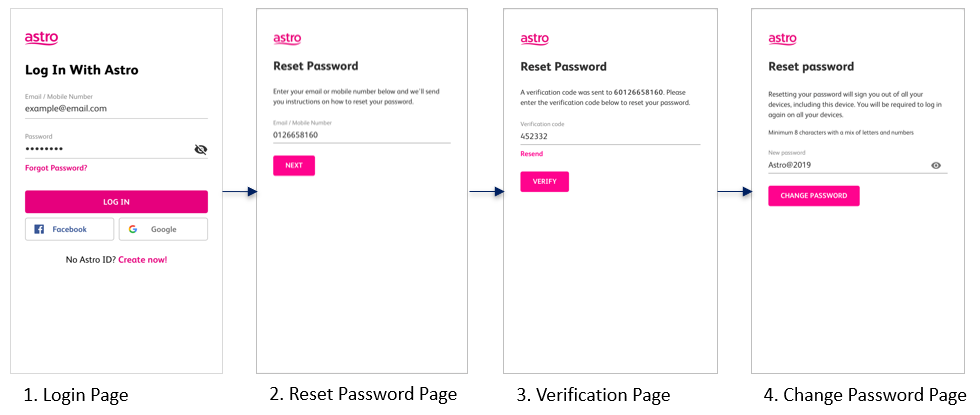
To change your password, you may use the ‘forgot password’ recovery feature on the login page. Just enter the email address/ mobile number you signed up with and we will send you a recovery email.
Alternatively, you may also change your password or manage your account details by logging on to www.astro.com.my, click My Account, then proceed to Log in.
FORGOT / RESET PASSWORD (EMAIL ADDRESS)
FORGOT / RESET PASSWORD (MOBILE NUMBER)
Astro GO is supported on the following internet-enabled devices, web browsers, and operating systems:
- Android and iOS devices as specified within the supported device list.
- iOS mobile and tablet devices running iOS 16.0 & above.
- Android mobile and tablet devices running Android OS Version 7.0 & above.
*We strongly encourage you to update your device to the latest operating system for the best streaming experience.
The following desktop web browsers:
- Google Chrome version 110 & above
- Mozilla Firefox version 116 & above
- Apple Safari version 9.1.3 & above
Running on the following Operating Systems
- Windows 10.0 & above
- MacOS 10.10 & above
Kindly also note that Astro GO at present is not supported on mobile web browsers.
Astro Go also available in android TV running on version 8.0 and above, Google TV, LG SmartTV 2018 model and above with Web OS 4.0 and above and Samsung SmartTV 2018 model and above with OS Tizen 4.0 and above.
If you are using a device or running on an operating system not listed above, you will be able to download the Astro GO app, however the app may not be able to function properly.
Supported device list
Android devices running Android OS 7.0 and above, including;
- Samsung Galaxy S8 and Samsung Galaxy S8 Plus
- Samsung Galaxy S7 Edge
- Samsung Galaxy Note 8
- Samsung Galaxy Note 5
- Samsung Galaxy Note 4
- Samsung Galaxy Note 3
- Samsung Galaxy J7 and J7 Prime
- Samsung Galaxy J5 and J5 Prime
- Samsung Galaxy J3 Duos
- Samsung Galaxy J2 Prime
- Samsung Galaxy J1 Mini Prime
- Samsung Galaxy J1 Ace
- Vivo 1501 V5
- Vivo Y21
- Oppo A1601 F1s
- Oppo A37f
- Oppo A33f
- Oppo Neo 7
- Oppo F1s
- Google Pixel 2
- Huawei P10 and Huawei P10 Plus
- Huawei Mate 9 Pro
- Huawei Honor 9
- Huawei P9
- Huawei Y7 Prime
- Asus Zenfone 5
- Samsung Galaxy Tab 3V
- Lenovo Tab 2 A7-30
- Xiaomi Redmi Note 3 and Xiaomi Redmi Note 4
- Xiaomi Redmi 3s
Apple devices;
- iPad Air
- iPad Mini 2
- iPad Mini 3
- iPad Mini 4
- iPad Pro
- iPhone 11
- iPhone 11 Pro Max
- iPhone 6
- iPhone 6S Plus
- iPhone 7
- iPhone 7 Plus
- iPhone 8
- iPhone SE
- iPhone X
- iPhone XR
- iPhone XS
For Huawei phones with EMUI 10.1 and above, please refer below to find the list of compatible devices (downloadable through app gallery)
- Huawei P40
Please refer below for the list of devices that do not fully support Astro GO, but feel free to use any of the devices above!
- Huawei P20
- Huawei Mate 30
- Huawei Y7p
- Huawei Nova 7i
- Huawei Nova 3i
- Vivo V9
- OnePlus 6
- Pocophone F1
To access Astro GO on PC and MAC Internet browsers please launch your Google Chrome, Mozilla Firefox or Safari and head over to astrogo.astro.com.my
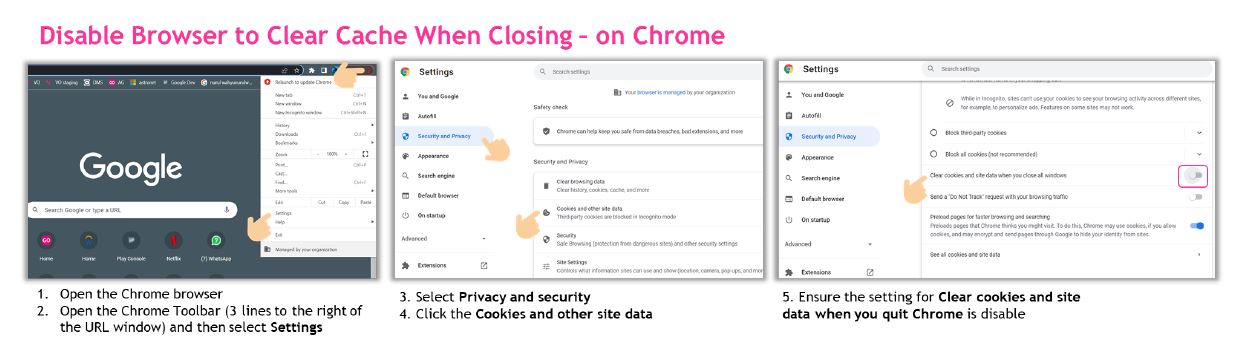
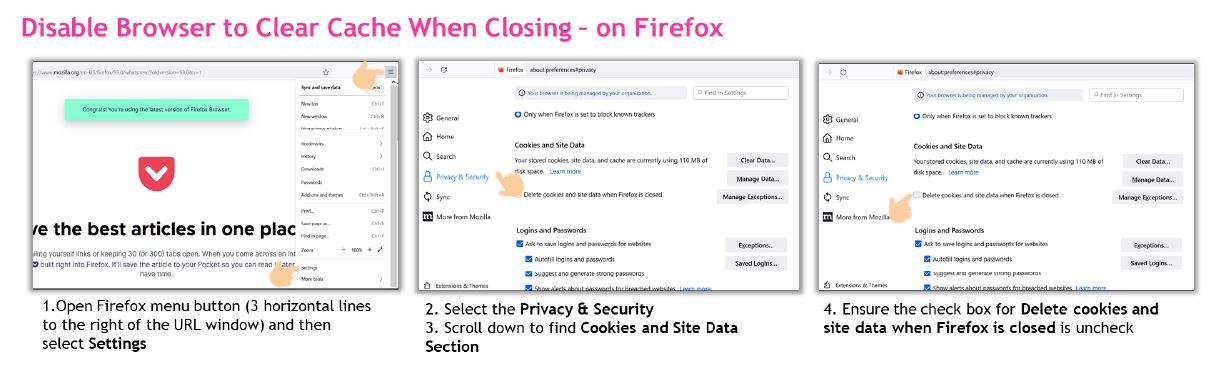
The main reason that this happens is that your web browser cookies/cache has been deleted which prevents Astro GO from recognising your web browser as part of your existing registered devices. Aside from manually deleting your web browser cookies/cache via the web browser settings, there are three (3) other scenarios that will result in Astro GO identifying the same laptop/PC as a separate device each time you try to log in to Astro GO:
- You stream Astro GO via a different web browser on the same device (e.g., you first stream Astro GO on the Google Chrome web browser and then subsequently stream Astro GO on the Firefox web browser). It is recommend that you stream Astro GO via one dedicated browser per device.
- You stream Astro GO in Incognito/Private mode on your web browser.
- You have turned on the ‘Clear cookies and site data when you close all windows’ settings via the Google Chrome web browser OR ‘Delete cookies and site data when Firefox is closed’ via the Firefox web browser. It is recommended that you avoid the above scenarios to ensure a smooth viewing experience.
As part of your complimentary service to Astro GO, you may register and flexibly manage up to four (4) devices and watch Astro GO on two (2) devices concurrently within the same household.
Customers subscribing to Multiroom (Smart TV)* can enjoy access up to 4 concurrency with Astro Go+ subscription. The concurrency is shared across one Smart TV device and 3 mobile/laptop/tablet device(s). The default concurrency for Astro Go without Astro Go+ subscription is 2 per account.
To add or remove devices on Astro GO, click on Settings > Registered Devices to view and switch out the list of devices registered to your Astro ID.
*For additional information on Multiroom (Smart TV), please scroll down to question no.62 in this FAQ document.
You may download and use the Astro GO app as it is free for all Astro customers. However, your viewing experience may be affected and we might not be able to assist you accordingly.
Not all shows/channels will be available on Astro GO as this depends on contractual rights with specific guidelines on the entitlement of these shows/channels and what you have as a part of your subscription.
Below are channels that are not available on Astro GO
- TV3
- TAYANGAN HEBAT HD
- ART
- NTV7
- 8TV
- TV9
- VELLITHIRAI
- AWESOME TV
- STAR CHINESE CHANNEL
- ARABIC RADIO & TV VARIETY
- NJOI TV
- NHK WORLD HD
- FX HD
- ASTRO BEST/FIRST CHANNELS
Please be assured that Astro is continuously working hard to make more content available on Astro GO.
As part of your complimentary service to Astro GO, you may register and flexibly manage up to four (4) devices and watch Astro GO on two (2) devices concurrently (for users within the same household). Customers subscribing to Multiroom (Smart TV)* can enjoy access up to 4 concurrency (watch 4 screens at the same time) which is shared across one Smart TV device and 3 mobile/laptop/tablet device(s).
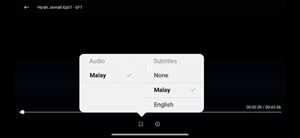
Yes, you be able to select the playback quality of your video stream which enables you to control the mobile internet data / wi-fi data consumption effectively, while streaming via Astro GO. This means that based on your data plan, you can choose whether to stream with a higher video quality but with more data consumption or with a lower video quality with less data consumption.
To adjust your streaming quality, you can go to Settings > Preferences > Streaming Quality*. Or you can also adjust the streaming quality directly via the video player.
Old Video Player Selections
New Video Player Selections
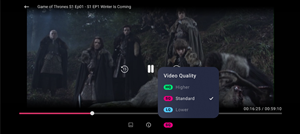
This gives you the option to set the default video quality which will be used when streaming via Astro GO:
- Lower: Basic video and audio quality, up to 0.4 GB per hour.
- Standard: Standard video and audio quality, up to 0.6 GB per hour.
- Higher: Best video and audio quality, up to 0.8 GB per hour.
*Adjusting this setting may increase internet data usage on your device
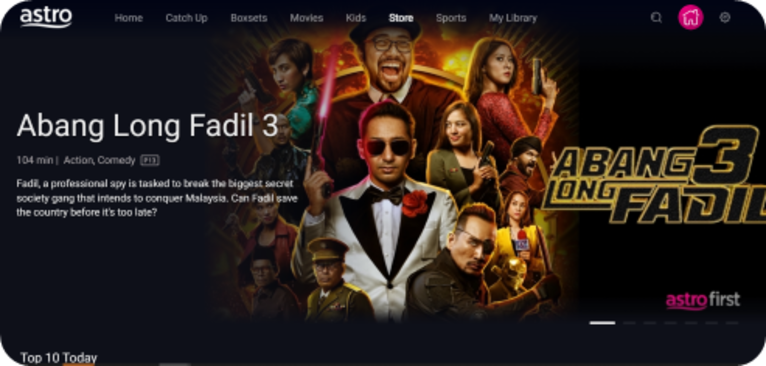
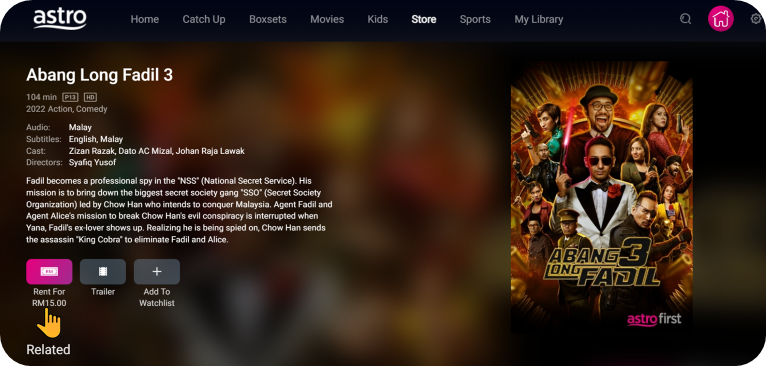
Head to the Store section (Android devices, Huawei devices and Astro GO website). A purchase requires you to enter a 4-digit PIN that can be setup in your settings. Go to above questions to understand how to manage your 4-digit PIN.
Purchase instructions:
Head to the Store section
Go to STORE Menu, pick any content that you want to purchase
Click on RENT
Enter Your PIN (Default PIN 0000)
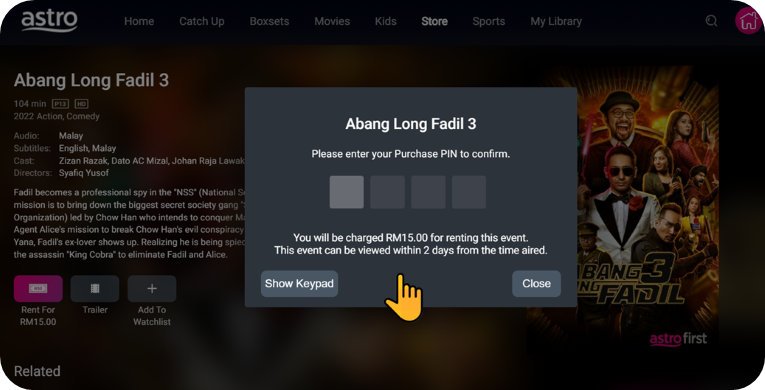
Confirm to Purchase
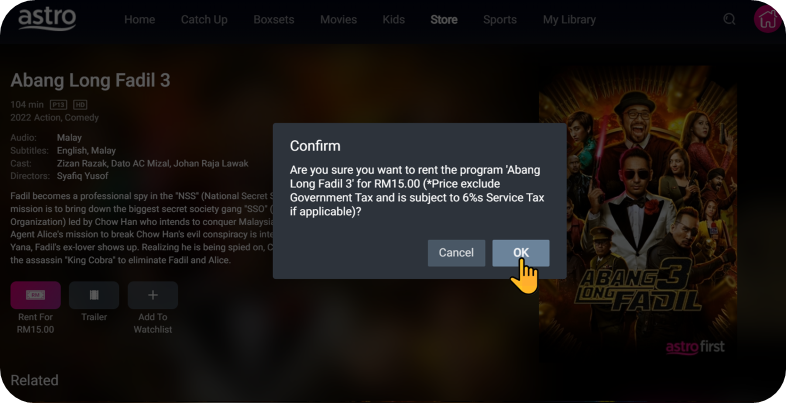
Purchased Success. Enjoy!
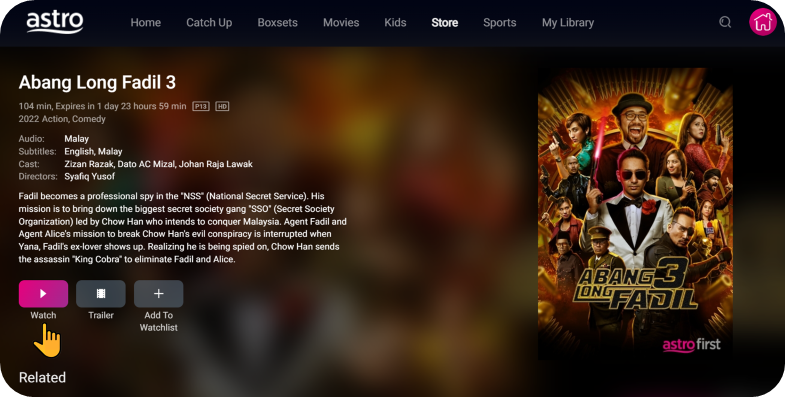
You purchased content title will be available under “Rental” in My Library. All purchases on Astro GO will be added to your monthly bill and accessible on both your Astro GO and Astro decoder. Cancellation of purchase is not possible upon confirmation.
*Purchase of content is available on all platforms except for iOS*
All purchases on Astro GO are subjected to 8% SST.
Your account may be under suspension. Please contact our customer service to rectify this issue.
Please check your internet speed and connection status. If your internet is working without any issues, please log out and log into the app again.
(ERR-002)
This error indicates that you have reached the maximum number of simultaneous video streams for one (1) account. To fix this error, please stop streaming on any other device.
(ERR-007)
This error indicates that you are streaming on Astro GO while being connected to a VPN. Please close your VPN application and try streaming again.
(ERR-008)
You are attempting to play a content that is not part of your subscription. If you are not able to play a content that you are subscribed to, please contact our customer service to rectify this issue.
(ERR-601, ERR-1409)
Please check if you are streaming on a supported device. Astro GO is only applicable within the supported platforms; mobile devices (phones and tablets) and web browsers.
(ERR-1300, ERR-014)
Please ensure you are using the latest Astro GO version on your mobile devices. If the issue still persists, please contact our customer service to rectify this issue.
Customers can enjoy 200 hours (500 GB) of cloud recording on Astro GO web and mobile app, and on your Ultrabox (if applicable) at no additional cost.
No, it will not take up storage on your device as all recordings are stored on the cloud, however you will need internet connection to access/record on Astro GO.
All Astro customers are given 200 hours’ (500 GB) worth of storage for recording.
To check your remaining Cloud storage space, go to ‘My Library’ to access your recordings. Go to either ‘Single Recordings’ or ‘Series Recordings’ and scroll to the end and select ‘See All’. Here you will see your remaining storage space on the top right of the screen.
Yes, you can upgrade your storage to a total of 400 hours (1000gb) RM 12/month or a total of 1,500 hours (4000gb) at RM 15/month by visiting https://selfservice.astro.com.my/ or call us at 03 7490 8102.
Customers can record single episodes and all episodes of the show that they are watching on linear channels.
No, you cannot download recordings from the cloud.
Due to limitation of content rights, some channels cannot be recorded, while some recordings will only be valid for a limited time.
a. The following channels are unavailable for recording
- SHOWCASE
- CINEMAX HD
- PrimeTime
- HBO Family
- HBO HD
- HBO HITS
b. Recordings from the following channels will be stored for a limited time:
- One-year validity
- Comedy Central Asia
- MTV
- Nickelodeon
- 3-month validity
- LifeTime
- BABY TV HD
- 1-month validity
- SCCI HD
- NAT GEO HD
- CNBC HD
- NGW HD
Note: Some of these programmes may be available on our On Demand library. Please search using our “Search” function or explore the programmes on “Boxset”, “Catch-Up”, “Movies” or “Kids”.
If your Astro account is suspended, you will not be able to schedule new recordings, nor watch recorded shows on “My Library”. However, we will still record all scheduled recordings before your account was suspended. When you have reactivated your account, all recording services will be resumed.
The Download function offers an alternative to streaming so that you can watch TV shows and movies offline anywhere for a limited period of time.
You can start downloading a movie/TV show by clicking on the “Download” button. Kindly note that you can only download one title at the time. Other titles will be in queue and will start downloading automatically as soon as the first download is complete.
*To save on data usage, we recommend downloading via Wi-Fi.
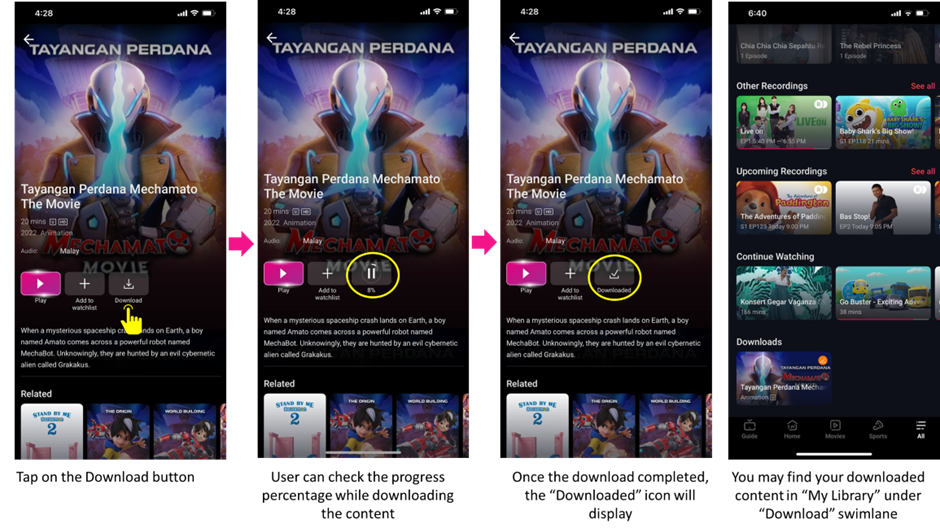
We try to make as many movies and TV shows available for download. However, for some titles, while we may have the rights to offer them via streaming, we may not be able to offer them for download
Once you have downloaded a title, the progress icon will show “Complete” and you may find your downloaded content by checking “My Library” > “Downloads”
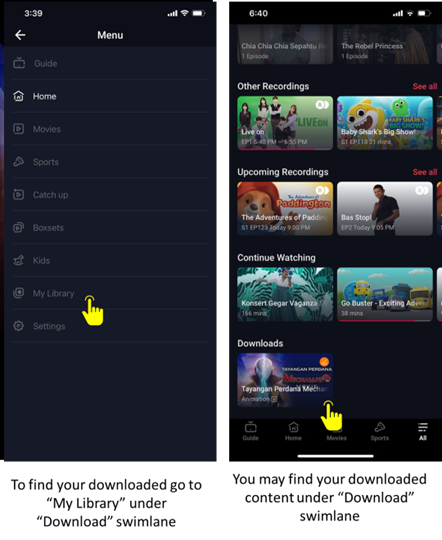
All downloaded content will be stored in user’s device storage and it is not permissible to be stored in SD card.
You will need the following to use the download function:
- An active internet connection to download the content
- A supported mobile device or tablet. The minimum system requirements are:
- Android and iOS devices as specified within the supported device list (please refer to questions under the “Device and System Requirements” section for the full device list
- iOS mobile and tablet devices running iOS 14.0 & above.
- Android mobile and tablet devices running Android OS Version 7.0 & above.
Retention periods vary according the type of content.
- Each movie – 2 Days
- Each TV series episode - 7 Days
The number of days left for you to view your content in offline mode is shown for each piece of downloaded content for your reference. Expired content will be automatically deleted from the app, freeing up your device storage.
The Multi-user Profile feature allows customers to create individual profiles within their Astro Box and Astro GO with the following personalisation:
- Personalised Recommendations
- Continue Watching
- Watch List
- Last Viewed Channel
- Favourite & Blocked Channels
The MUP feature is a great way to allow individual users to tailor personal Astro experiences whilst using a shared device (e.g.: Astro Box) in the household, providing them with better personalised recommendations and encouraging better content discovery.
The Adult profile will give users access to all content across all content ratings (U, P13, 18, 21), while the Kids profile will only give users access to content that is Kid-friendly.
An adult profile is recommended for users who are 13 years old and above, whilst the Kids profile is recommended for users who are 0 to 12 years old.
There are 4 areas of enhancement:
- Kid-friendly Channels, On Demand content & TV Guide: Only Kid-friendly channels and On-Demand content can be viewed and accessed in the Kids Profile, including the Home Page and TV Guide.
- PIN Control: When switching from a Kids Profile to an Adult Profile (i.e.: Brother to Mother), a 4-digit PIN entry is required.
- Limited Kids Profile Content Search: Only kid-friendly content can be searched for and displayed within the Kids Profile.
- Personalised Kids Recordings: Users will now be able to record their favourite programmes within the Kids Profile and access them under “My Library”. This feature will be available from 17th August 2023 onwards.
These enhancements are available across the Ultra/Ulti Box, Astro GO app and Multiroom Smart TV app.
Click here to find out more about this new feature and how to use it!
Users can create up to five (5) user profiles per household (Including default profile).
Currently, MUP is supported on the Ultra Box, Ulti Box, and Astro GO (App & Website). All changes that are made via MUP will be reflected across all devices (other Astro Boxes, Astro GO devices) under the same account. MUP will also be available via Multiroom Ultra/Ulti Boxes but not on the Multiroom Smart TV, which will only be made available in a future update.
Picture-in-Picture (PiP) mode is a newly introduced feature that allows you to continue watching your favourite Astro shows in a smaller floating player even when you are using other apps on your mobile device.
Additional features of the PiP mode:
- Resize the window using pinch-to-zoom.
- Tap the window once to pause, rewind, fast-forward, expand or exit the player.
- Tap the window twice to switch between the current window size to the largest window size.
- Move the window by dragging it to the left or right.
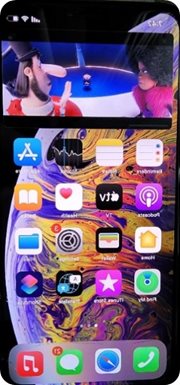
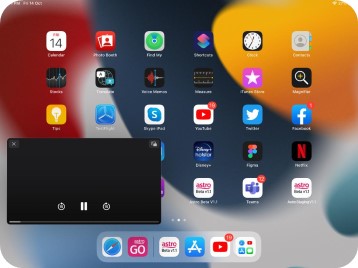
No, the PiP mode is currently only available for the Astro GO app on mobile devices. Please find here the list of eligible operating software and versions that supports PiP:
- Android devices with OS version 8.0 and above
- Apple devices with iOS 14 and above
- Apple devices with iPadOS 13.1 and above
Kindly note that some PiP resizing features have limitations based on the OS as below:
Device | PiP | PiP Resize (Corner Drag) | PiP Resize (Pinch) |
Android 10 and lower | Yes | No | No |
Android 11 | Yes | Yes | No |
Android 12 | Yes | Yes | Yes |
iOS | Yes | No | Yes |
To close a PiP window when you are using another app, simply tap the “X” located on the top left of the window.
If you would like to turn off the PIP feature entirely, you can do so in your mobile device’s settings by following these steps:
For Android Devices:
Step 1: Device Settings à Apps & Notifications à Advance à Special App Access à Picture-in-Picture
Step 2: Click “Astro GO”
Step 3: To turn off, tap the toggle to block the PiP mode for Astro GO
For iOS Devices:
Step 1: Open iPhone or iPad Settings
Step 2: Select “General”
Step 3: Tap “Picture-in-Picture”
Step 4: Turn off “Start PiP Automatically”
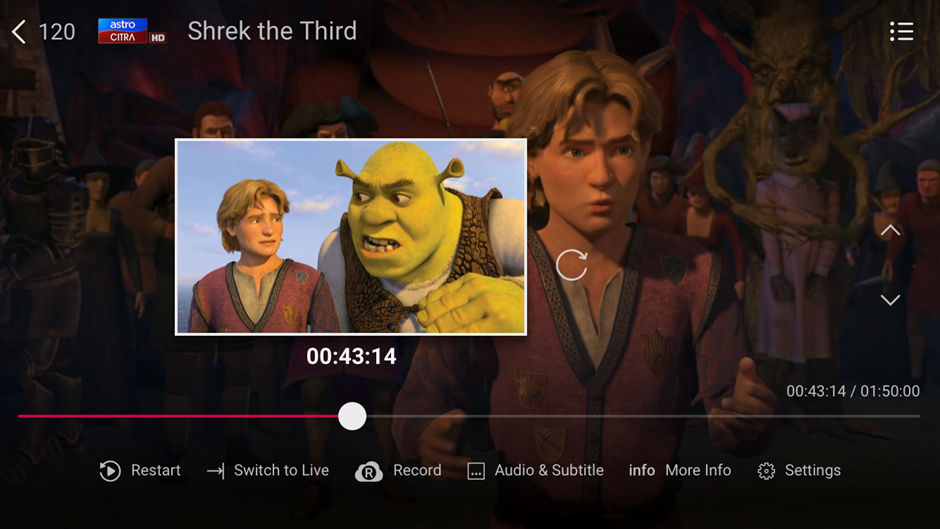
Thumbnail view on progress bar allows users to browse through and preview video content via thumbnails that will be displayed over the scrub bar, before deciding to start video playback on the selected thumbnail location.
Currently, thumbnail viewing is only supported for Video On Demand (VOD) content. Support for other content type (Cloud PVR, Play From Start and Continuous Viewing) will come in future software updates.
During the playback of any Video On Demand video (or on the Player progress bar), users can press the following keys to activate Thumbnail View:
- Left/Right: Pause video and manually browse through thumbnails
- Rewind/Fast Forward Key: Automatically moves thumbnails at 1x, 2x, 3x speed
Multiroom (Smart TV) is a secondary subscription that allows you to enjoy your favourite Astro shows instantly in different rooms at the same time on your Astro Smart TV app. Subscribe to Multiroom (Smart TV) at a promotional price of RM14.99 per month (excl. any govt. tax), and simply download the Astro Smart TV app on your second TV screen to stream.
The Multiroom (Smart TV) will utilise one (1) of your Astro GO concurrency. Customers subscribing to Multiroom (Smart TV) can enjoy access up to 4 concurrency (watch 4 screens at the same time) which is shared across one Smart TV device and 3 mobile/laptop/tablet device(s), for a limited period only. The default is 2 concurrency per Astro account.
Each Astro account is entitled up to 4 smart devices to be registered including mobile, laptops, tablets and a Multiroom (Smart TV) per household.
If you have maximised the registered device, you will be able to see the list of all your current registered devices on your mobile screen. Please remove any one device to allow the current Smart TV device to be included.
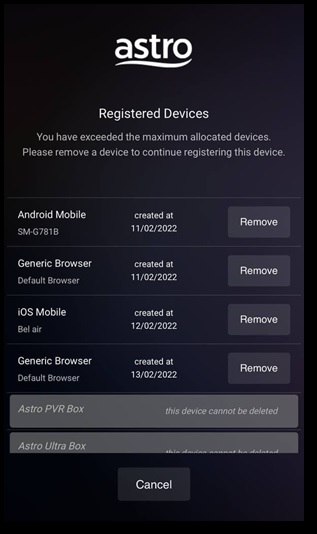
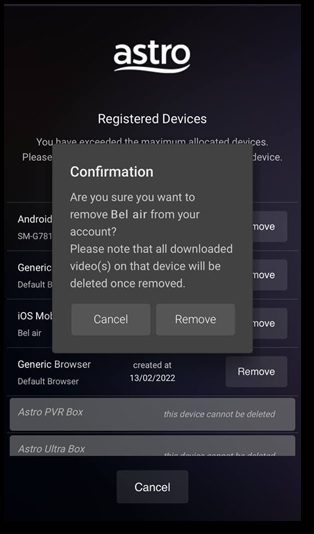
Do note that only 1 Smart TV device is allowed at any point in time and 1 device swap per month including any smart devices.
No, the quality of your video depends on the speed and reliability of your internet.
For more info on the product including offers and setup, please visit product.astro.com.my/multiroom
Please contact us and provide us with your name, Astro ID, mobile phone number and/or e-mail address along with your purchase information via:
- WhatsApp "Hi" to +60395433838
- Facebook @ fb.com/AstroGO.my
- Twitter @AstroGOmy
- E-mail: [email protected]
- Web feedback form: https://support.astro.com.my/feedback-form